Creating a storyboard in Google Slides is as easy as
- Add a background to a slide.
- Add characters (many ways to do this).
- Create speech bubbles in Google Slides to add conversations and thoughts.
- Download slides as JPGs (in the file menu in Google Slides).
First, sketch out the slides that you’d like to create. You can do this on paper or digitally. Here’s a template you can use: Storyboard Template
Then, CREATE those slides in Google Slides:
Tutorial: Creating a Storyboard in Google Slides
| Step 1 ‣ Login to Google ‣ Open Google Slides |   |
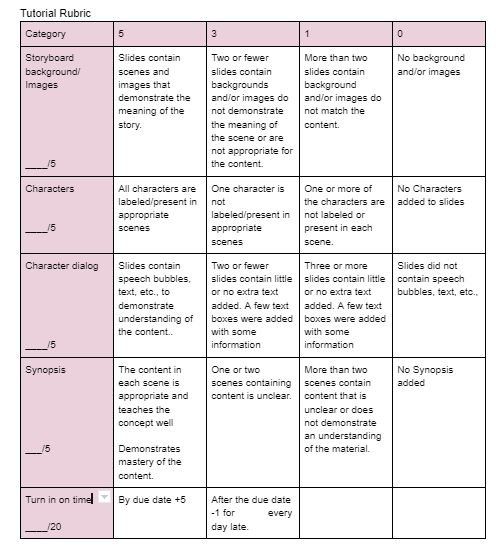
| Step 2 Refer to rubric for storyboard requirements ‣ Name presentation Choose a theme from selection in Google Slides Create Title Slide ‣ Title of the project ‣ Name(s) of individual or group members | Storyboard Rubric 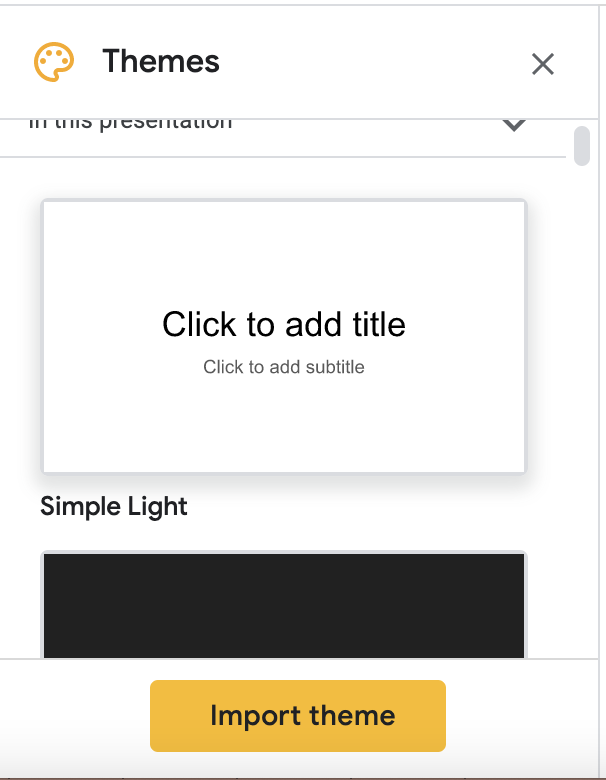 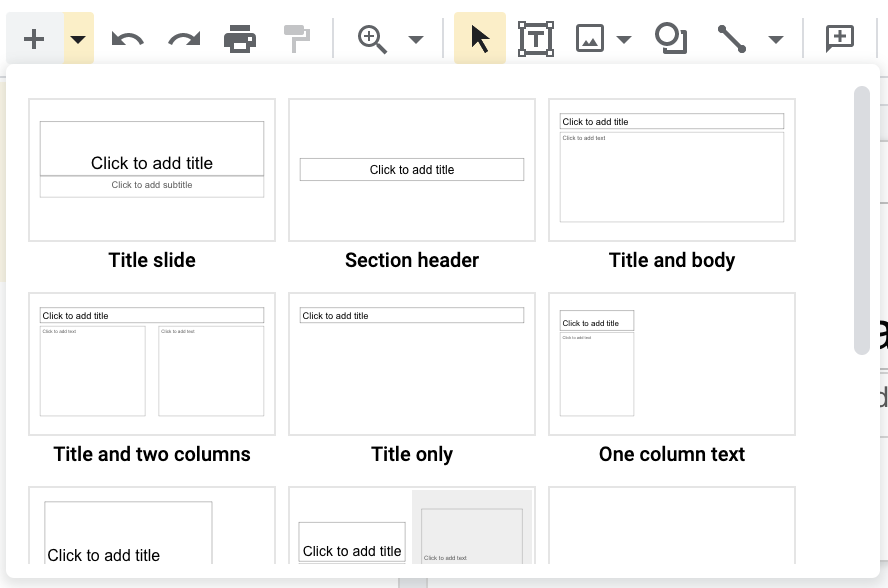 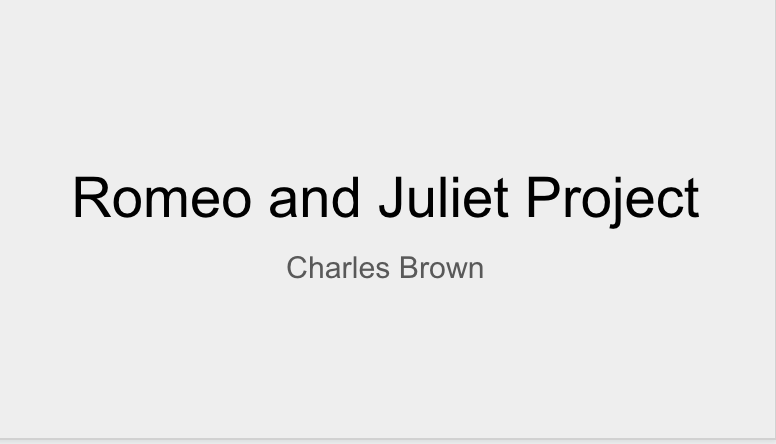 |
| Step 3 ‣ Create first slide ‣ Insert a 3×1 table ‣ Adjust each cell ‣ Top cell theme of slide (1 line) ‣ Middle cell background image and characters ‣ Bottom cell: Synopsis of action in the slide |  |
| Step 3 Continued… ‣ Background can be removed from a character ‣ Images can be removed from backgrounds ‣ Follow the link to Removebg Upload image to remove the background. Download image after doing so. Chose Storyboard images (Varies with each slide) ‣ Add background (Duel, Masquerade Ball, Marriage, Fight, Upset, Sleeping Potion/Death) ‣ Add character images ‣ Add prop images ‣ Edit size and location of images to fit slide |    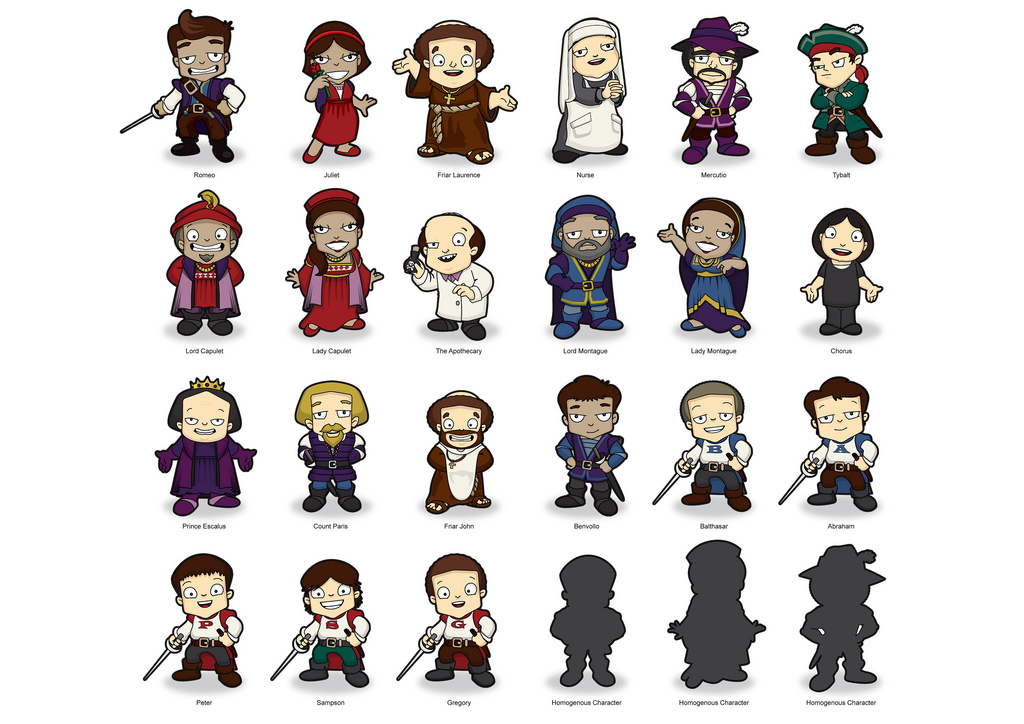  |
| Step 4 ‣ Add text and dialog ‣ Add title/scene # of scene to each slide ‣ Add dialogue: Speech bubbles (look in “Callouts”) & Text boxes ‣ Add synopsis of action taking place in Slide (Duel, Masquerade Ball, Marriage, Fight, Upset, Sleeping Potion/Death) |  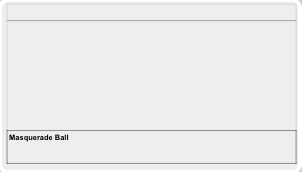 |
| When you’re finished with the slides, download them: ‣ Click “File” and select “Download.” ‣ Select “JPEG” or “PNG.” These are the most common | 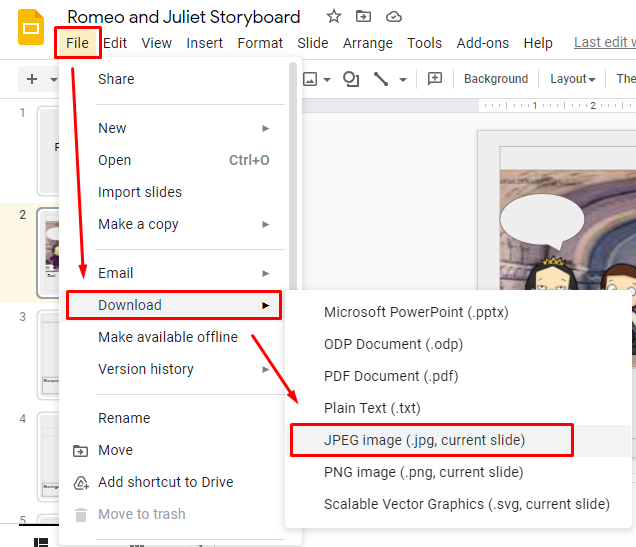 |
| When you’re finished downloading the images, you’ll have a set of images ready for upload into your video editor. We’re using ClipChamp.com | 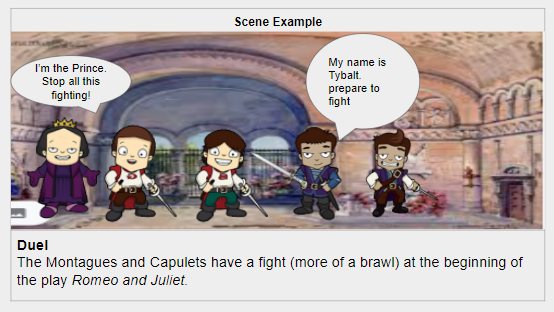 |
| You’ll use these in your video editor as the imagery, (the sequence of visual “scenes”) while the song or rap audio is playing in the background. |  |